
How to save a page
Choose your destination once.
Then select TapClip from Safari’s share sheet.
Set up your destination
Open TapClip and tap Get Started → Connect Notion.
In Notion, confirm your workspace and allow access to the page containing your destination database.
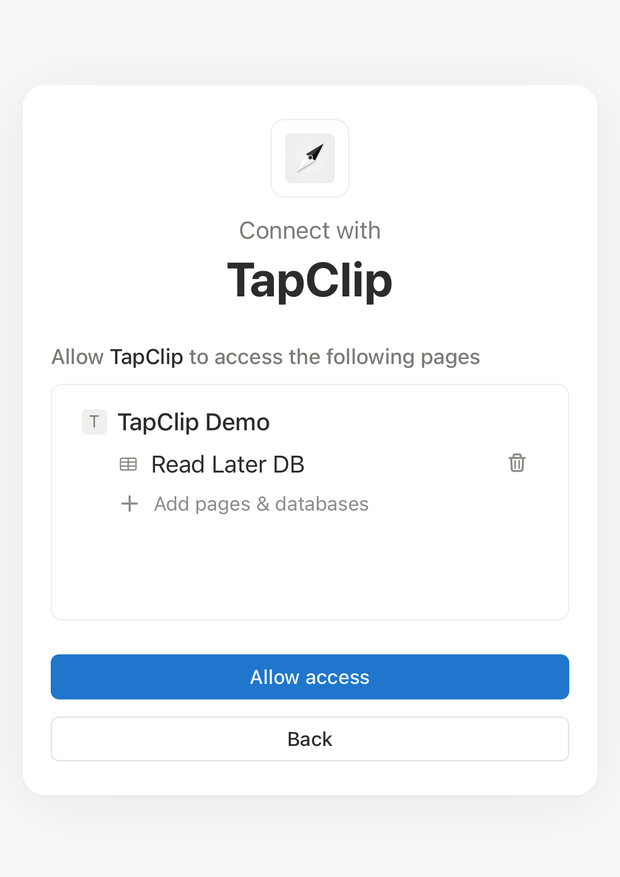
Allow access to your destination
Return to TapClip and choose your destination database. The title, article text, and source link are saved automatically.
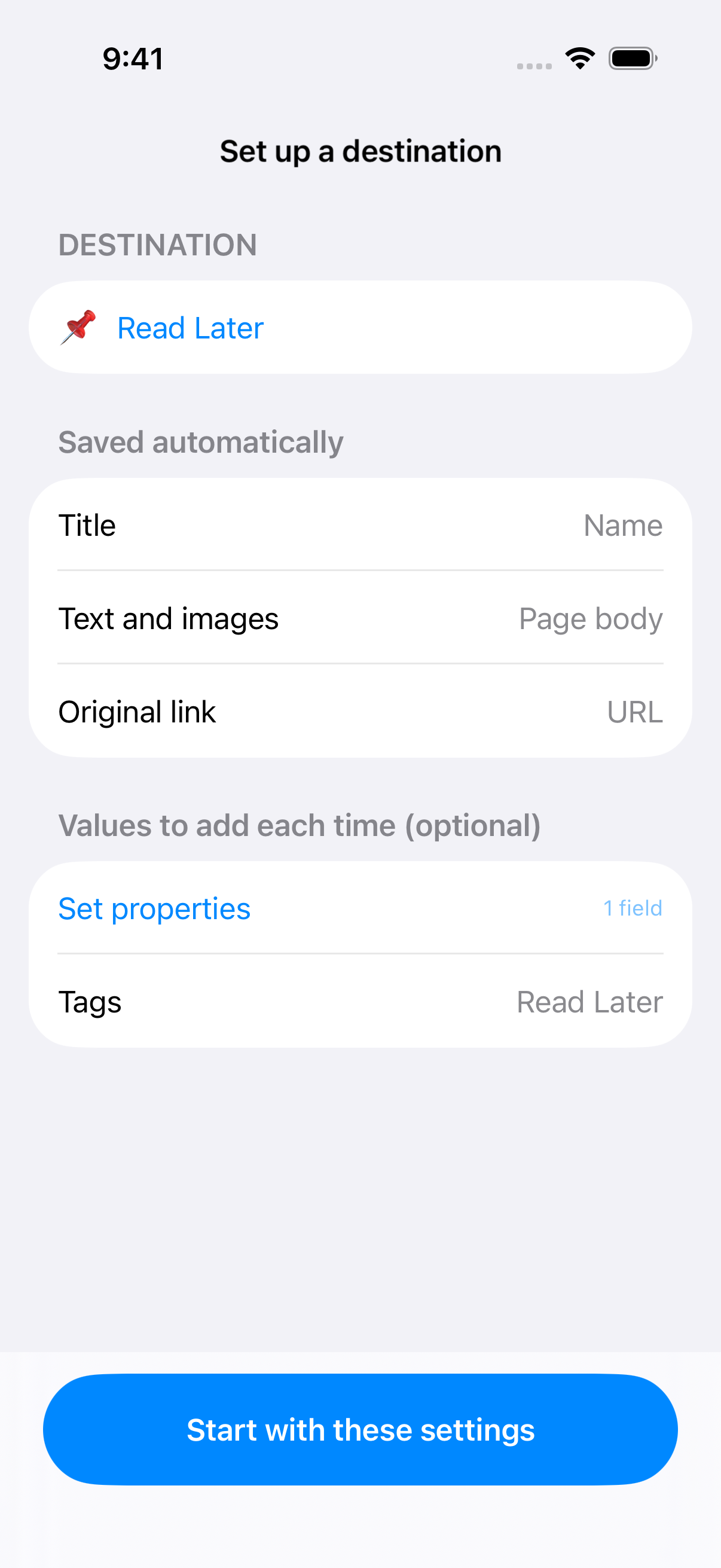
Check the destination and what will be saved
Add tags or a Project to every save (optional)
Open Set properties, choose a property, and set the value to include each time. Tap Done to return and see a summary of your settings.
If a relation’s linked database is missing, grant TapClip access to that database in Notion as well.
Tap Start with these settings to save your setup. Watch the saving guide, then try an article you already read.
Saving from your browser
Open an article in Safari and bring up the share sheet. For subscription content, sign in and display the article text first. In Safari on iOS 26, tap … at the bottom of the screen and choose Share.
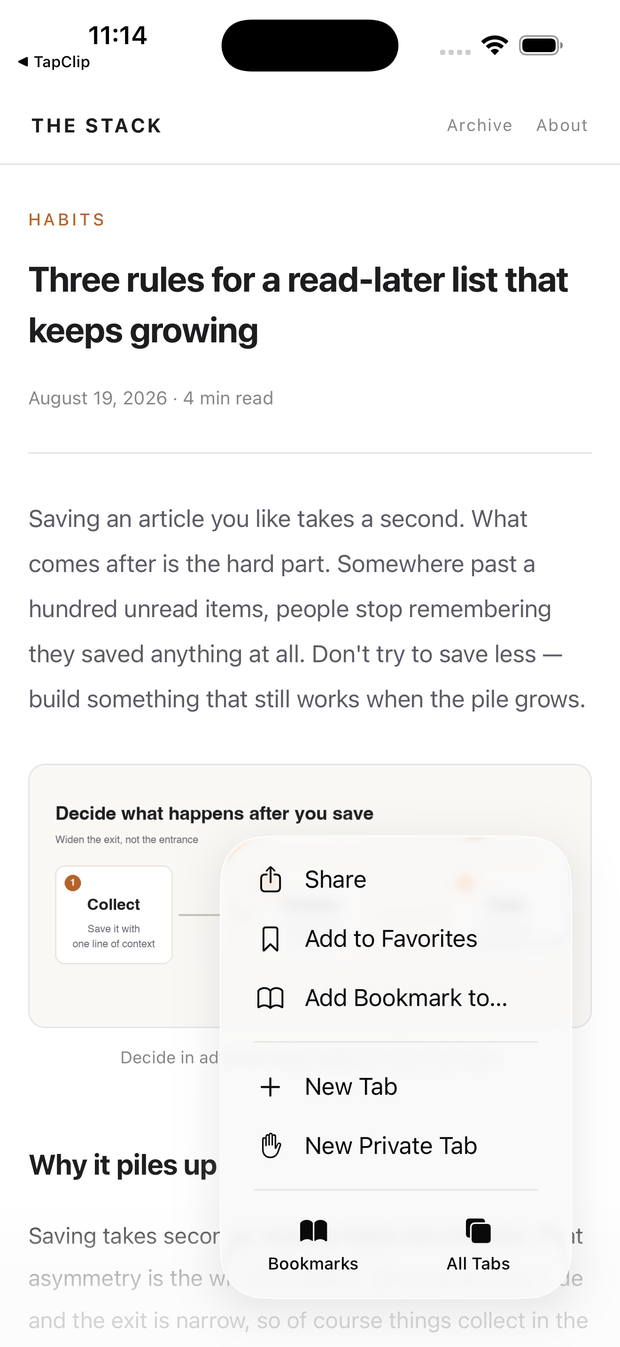
Tap … then Share
Tap TapClip in the row of apps.
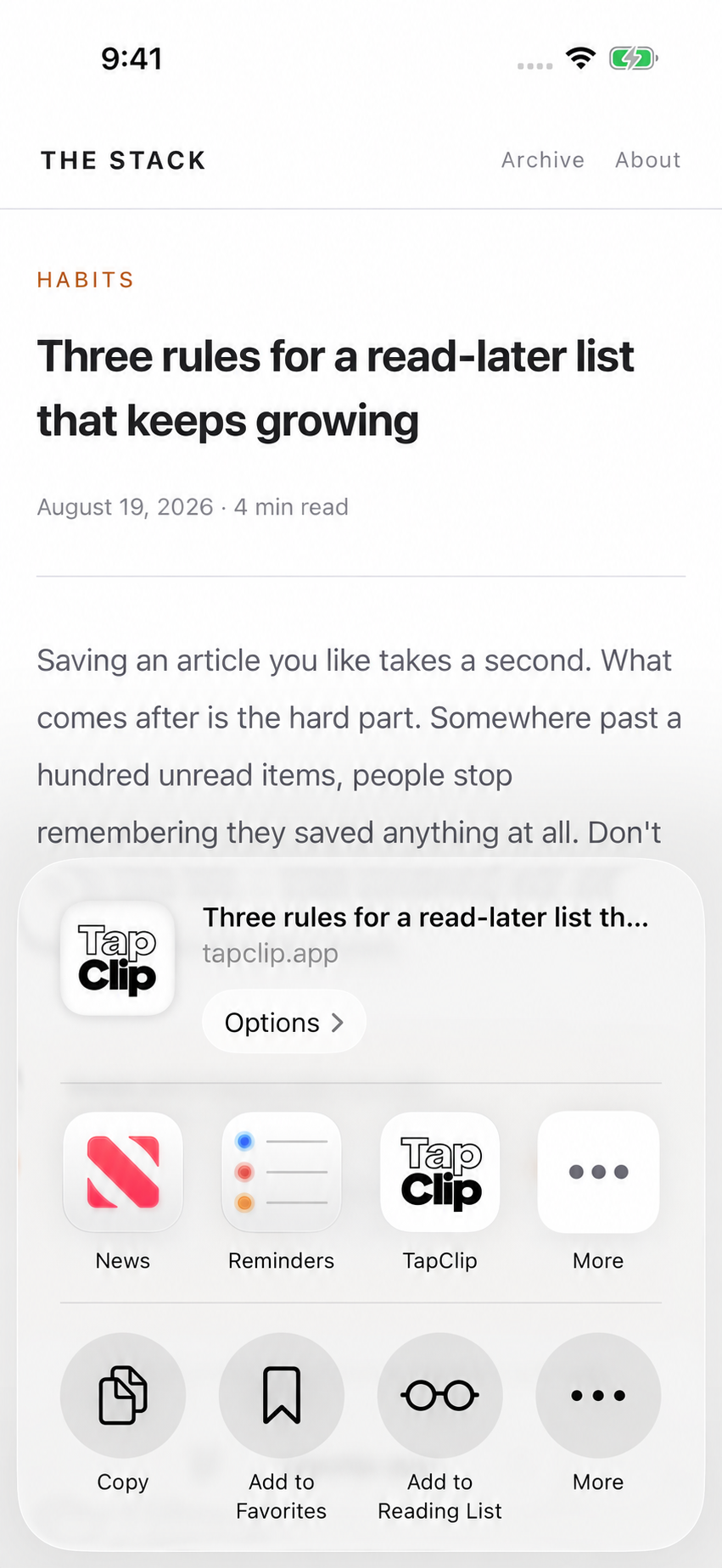
Tap TapClip
If you can't find TapClip
- Scroll the app row to the right, or tap More to look through the full list. Tap Edit at the top right to add it to your favorites and it will sit at the front next time.
The article saves automatically to your configured database. If a confirmation appears, tap Open in Notion to check the article text.
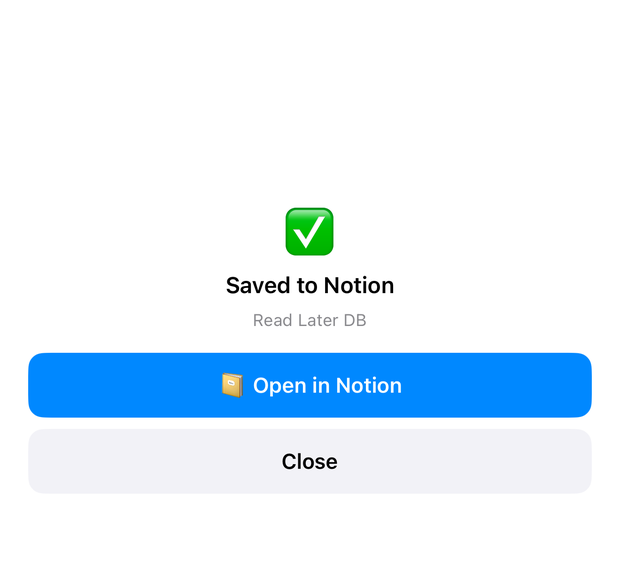
The confirmation names the database it went to
All set
Change your destination or recurring values
On TapClip’s main screen, open the database under Save settings, make your changes, and tap Save.
If saving doesn't work
- TapClip appears when you share a web page, so share from a page open in your browser.
- If you haven't opened the app since installing it, connect Notion first — step 1 above.