 TapClip日本語
TAPCLIP JOURNAL
Keep the article.
Not just the link.
From Safari on your iPhone to Notion—with the article text.
Sound familiar?
- You save an article, but only the title and link arrive.
- Selecting and copying a long article on your phone is a chore.
- Every save means adding the same tags or Project again.
Read the Financial Times or The Wall Street Journal and want to keep useful articles with your research? TapClip brings the text displayed in Safari into the Notion database you already use.
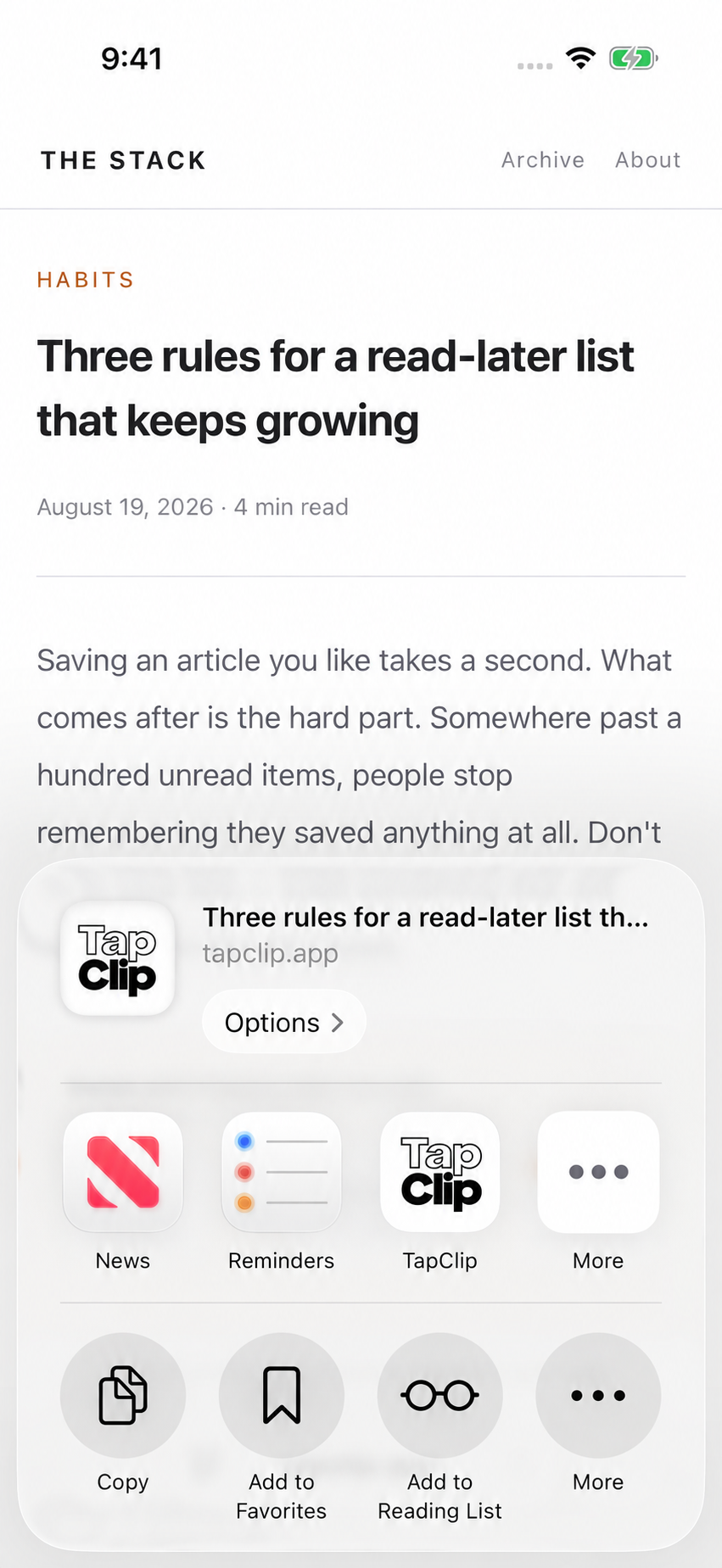
Choose TapClip in Safari
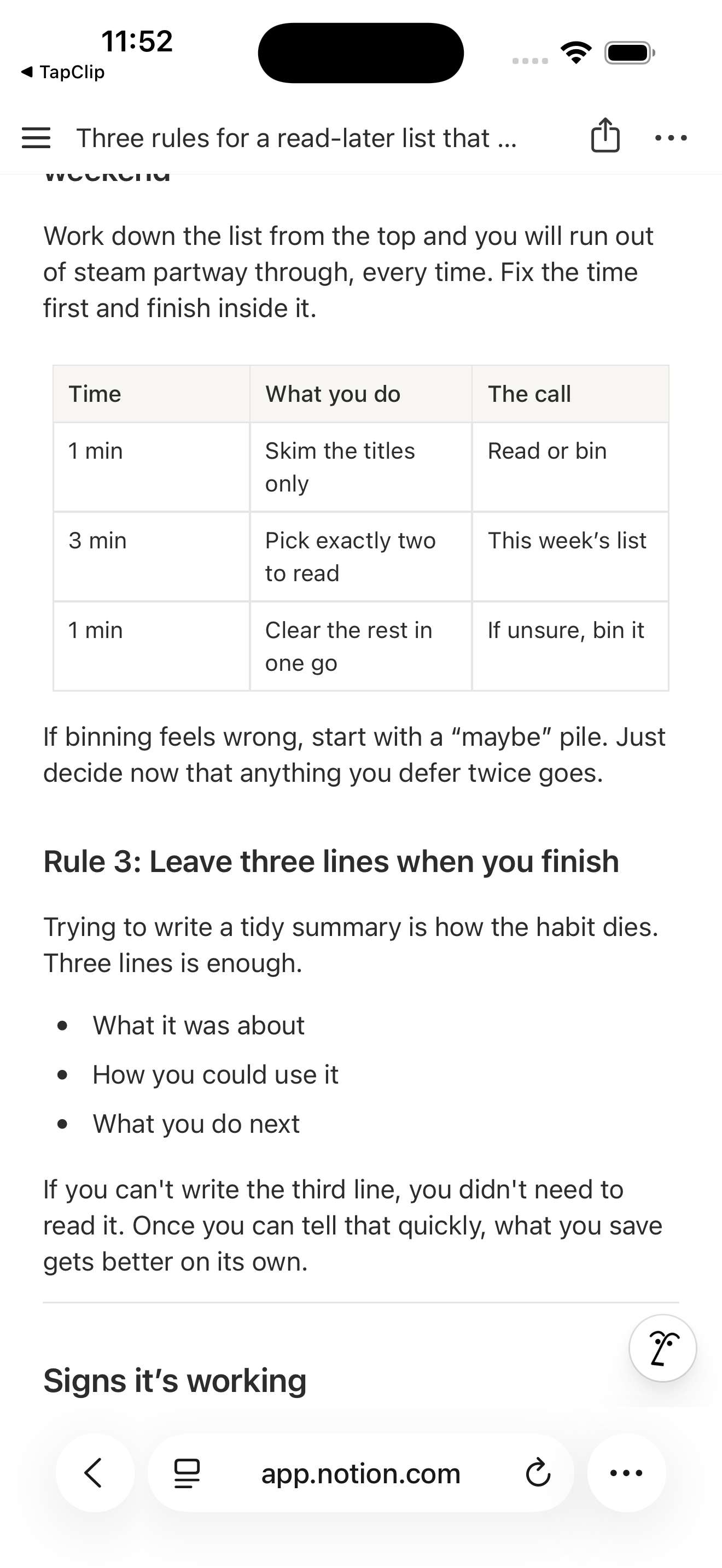
Read the text in Notion
No selecting. No copying. No pasting.
Sign in to your subscription website in Safari and open the article. Choose TapClip from the share sheet to save the title, source link, and available article text and images together.
- Set your destination onceConnect Notion in TapClip and choose a database.
- Share from SafariOpen the share sheet on the article and choose TapClip.
- Read it in NotionWhen saving finishes, tap “Open saved page” to check the text.
Organized as soon as it is saved.
Save to “Read Later” with the Project set to “Research.” Configure recurring values once, and spend less time organizing each article afterward.
Example save settings
Try an article you already read.
Start with one article. Open it in Safari, then save it to Notion with TapClip.

Display the article text in Safari before saving. Available content varies with the page structure and what has loaded.